
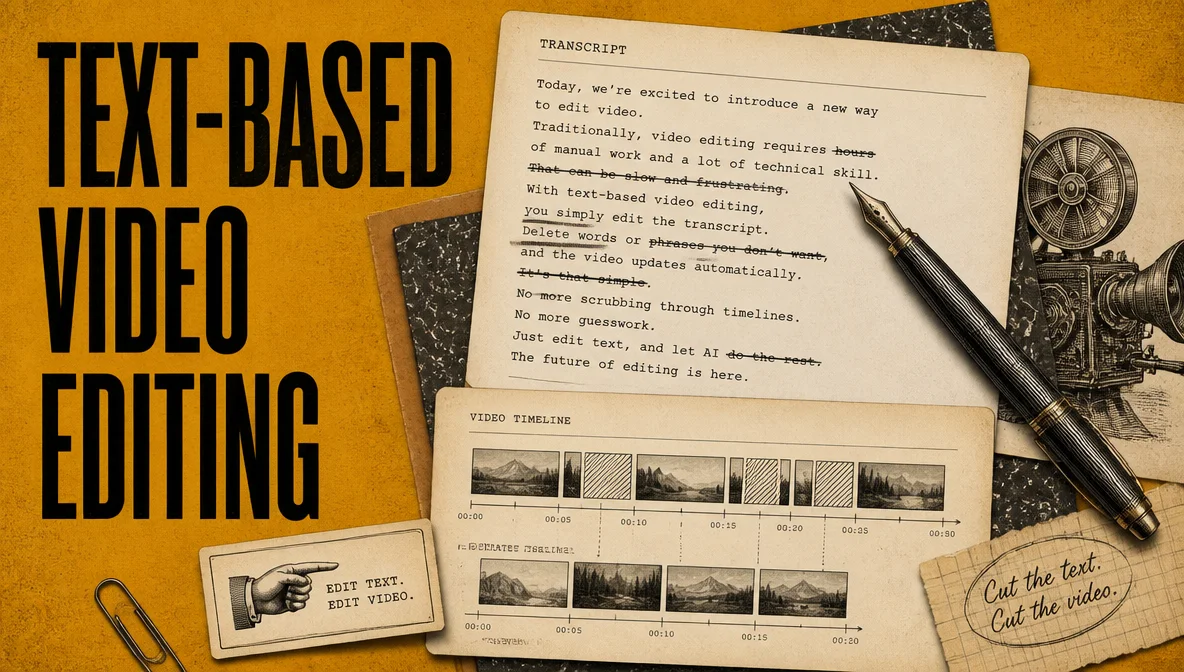
The timeline is no longer the only place where video editing happens. Text-based video editing moves the first rough-cut decisions into a synchronized transcript.
Instead of skimming footage frame by frame, you work from a document in which each word links to a moment in the recording. Delete a sentence and the corresponding footage is removed. Search for a phrase and you can jump to that part of the video.
That workflow is especially relevant as podcasts become more visual. EMARKETER reported in 2026 that 71% of podcasters incorporate video into their shows. Much of that material is dialogue-led footage that must be shaped from long, unscripted recordings.
What Is Text-Based Video Editing?
Text-based video editing is a method of editing video by changing a synchronized transcript instead of making every cut manually on a timeline. Words are linked to time ranges in the source, so deleting or rearranging transcript sections updates the corresponding media.
It does not eliminate the timeline. It gives editors a faster surface for dialogue decisions, then leaves visual polish, color, motion graphics, and detailed sound work to the timeline when needed.
How a Text-Based Video Editor Works
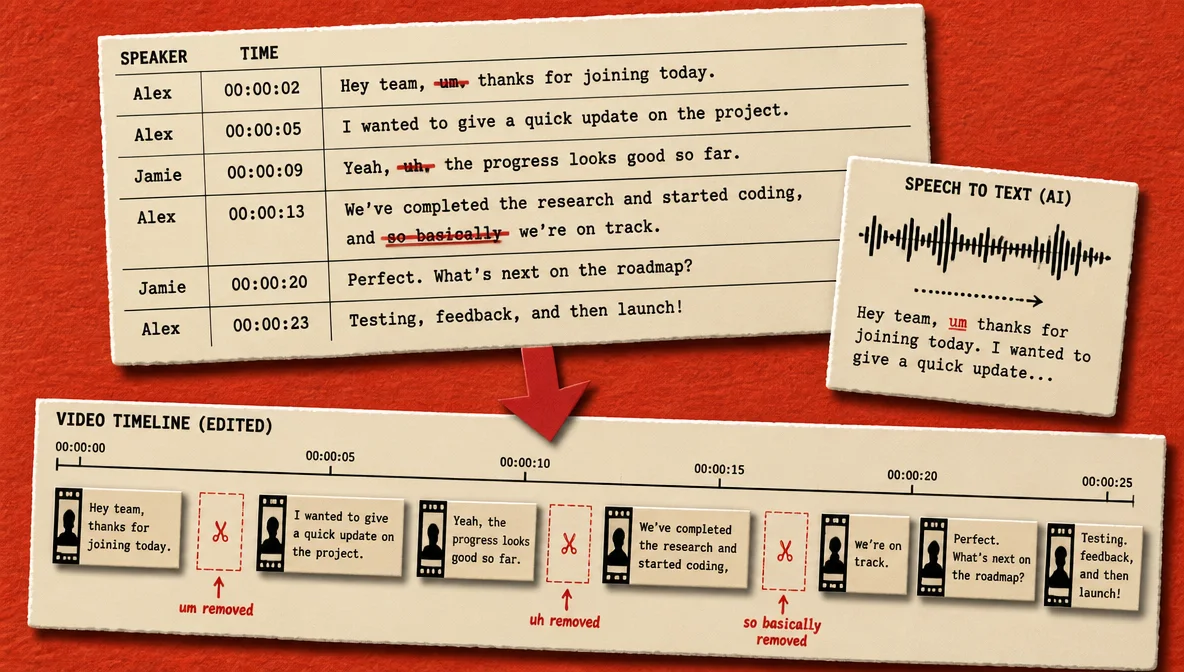
Two connected layers make the workflow possible.
1. AI transcription
After you upload media, speech-to-text creates a transcript with word-level timing and detected speakers. Each word points back to the source recording, so clicking text can seek the player to the right moment. The same transcription can also power captions and subtitle exports; see the AI caption generator for that workflow.
2. The editing map
The editor translates transcript actions into timeline actions. Deleting selected words cuts their source-time range. Deleting a paragraph removes its clip or its words, depending on the view. Reordering a clip-view paragraph moves the corresponding media, and closing an inline gap ripples later material left.
AI tools can build on top of that map. They can identify common filler words, compress long pauses, locate a topic, or apply the same cleanup across a long recording. In ChatCut, you can edit the transcript directly or give the AI a natural-language instruction.
Text-Based Editing vs. Traditional Timeline Editing
Traditional editing asks you to scrub footage, listen for the right moment, mark a range, cut it, and repeat. Text-based editing turns the same first pass into reading, searching, and selecting.
The exact time saving depends on transcription quality and how much editorial judgment the project needs, but the workflow is usually fastest when speech drives the cut.
| Factor | Traditional timeline editing | Text-based video editing |
|---|---|---|
| Finding a specific moment | Scrub and listen | Search or scan the transcript |
| Removing words or sentences | Mark time ranges manually | Select text and delete |
| Multiple speakers | Inspect tracks and waveforms | Use detected speaker labels, then correct them as needed |
| Rearranging dialogue | Move timeline clips | Reorder transcript-linked sections |
| Complex multi-camera work | Full visual control | Useful for the dialogue pass, but limited for final visual decisions |
| Color, VFX, and motion graphics | Native timeline work | Still completed on the timeline |
Traditional timeline editing remains the right surface for multi-camera productions, color grading, effects, music-led sequences, and frame-specific visual storytelling. Transcript editing is strongest for talking-head content, podcasts, and interviews.
How to Edit Video Using the Transcript in ChatCut
ChatCut combines a direct transcript editor with conversational AI. Here is the current workflow.
Step 1: Upload footage and let it transcribe
Add a video or audio file to the project. After transcription finishes, open the Transcript tab inside the My Assets panel group.
Step 2: Choose Paragraph view or Clip view
Paragraph view groups the recording into natural, article-like paragraphs that may span several timeline clips. Clip view shows one paragraph per timeline cut and is better for cut-by-cut work.
Clicking a word seeks the player to its start time. The transcript and timeline stay synchronized, so you can read the recording without losing your place in the media.
Step 3: Delete, correct, or reorder from the text
Select words and press Delete or Backspace. ChatCut splits the underlying clip at the word boundaries, removes that range, and ripples the active track closed. You can also edit wording, change a speaker label, delete a paragraph, or drag a paragraph in Clip view to reorder the corresponding clip.
For broader cleanup, give the AI a plain-language instruction such as:
Remove common filler words and tighten the long pauses, but keep the speaker’s natural pacing.
ChatCut’s automatic cleanup recognizes common English fillers such as “um,” “uh,” “er,” and “ah,” plus supported Chinese fillers. It deliberately avoids ambiguous words that may carry real meaning. Its default silence pass compresses longer gaps while leaving shorter conversational pauses intact.
Step 4: Review the generated cut
Play the edited sequence and check the cut points. Transcript deletions are real timeline edits, and undo/redo uses the same history as the rest of the editor. Fine-tune clips or gaps on the timeline when a sentence needs more breathing room.
Step 5: Export the deliverables
ChatCut can export a finished video, MP3 audio, TXT transcript, SRT or TXT subtitles, and XML for a follow-up pass in a traditional NLE. Captions, B-roll, motion graphics, and social formatting can stay in the same project before export.
Benefits of Text-Based Video Editing
- Faster navigation. Searching a transcript is quicker than listening through a long recording to find one quote.
- Direct dialogue cuts. Select words or paragraphs instead of repeatedly setting in and out points.
- Safer bulk cleanup. Review filler-word and pause changes in context before exporting.
- Clearer speaker structure. Detected, color-coded speaker labels make interviews easier to scan and can be corrected inside the transcript.
- Easier repurposing. One transcript can help locate passages for a full episode, a summary, and several social clips.
- A gentler starting point. Non-editors can make a useful dialogue rough cut before learning every timeline tool.
Who Benefits Most?
Podcasters and interview editors
Long conversations usually contain more material than the final episode needs. Reading the transcript makes it easier to mark tangents, repeated explanations, and unusable takes without replaying the entire recording.
Documentary and long-form creators
Documentary editors often create a “paper edit” before touching the final timeline. Searchable transcripts make it easier to compare interviews, locate recurring themes, and assemble a preliminary structure while preserving links to the source footage.
Marketing teams and content producers
A single interview may need to become a full video, a 90-second summary, several social clips, and pull quotes. The transcript acts as an index for all of those outputs.
Non-editors who need to ship quickly
A transcript gives producers and subject-matter experts a readable surface for the first pass. ChatCut’s AI layer goes further by applying natural-language requests without requiring every selection to be made by hand.
Limitations of Text-Based Editing
- It depends on clear speech. Poor audio, overlapping speakers, names, and specialized terms can create transcript errors that must be fixed.
- It is not ideal for B-roll-led stories. A transcript describes what was said, not the visual relationship between shots.
- Music and effects still need a timeline. Rhythm, sound design, motion graphics, and visual continuity require audiovisual judgment.
- Automatic cleanup needs review. A pause may be intentional, and a repeated phrase may be part of the speaker’s meaning.
- It produces a rough cut, not always a finished piece. Color, detailed audio work, B-roll, graphics, and final pacing may still need a timeline pass.
ChatCut vs. Descript
Descript established the document-style transcript editor: edit the text and the media follows. ChatCut supports that same direct transcript workflow while adding a conversational AI layer that can carry out broader project instructions.
| Capability | ChatCut | Descript |
|---|---|---|
| Direct transcript editing | Yes | Yes |
| Natural-language project edits | AI-first conversational workflow | Available through Underlord and AI actions |
| Filler-word cleanup | Direct selection and automatic / AI-commanded cleanup | Automatic cleanup |
| Speaker detection and relabeling | Yes | Yes |
| Timeline editing | Multi-track timeline | Timeline and composition tools |
| Best fit | Transcript plus AI instructions in one editing project | Document-style editing, recording, and publishing |
The choice is less about whether either tool can edit text and more about how you want to direct the work. Choose Descript when you prefer a mature document-editor workflow with recording built in. Choose ChatCut when you want direct transcript control plus an AI agent that can apply instructions across the timeline.
Read the full ChatCut vs. Descript comparison before deciding.
Conclusion
Text-based video editing removes one of the slowest parts of dialogue editing: repeatedly watching footage to find the moments worth keeping. For interviews, podcasts, documentaries, and talking-head videos, a synchronized transcript is a faster way to navigate and shape the first cut.
The workflow has real limits. Poor audio, B-roll-heavy content, music-led sequences, and effects work still need audiovisual judgment on a timeline. But when speech drives the editorial decisions, transcript editing makes the source easier to search, understand, and restructure.
ChatCut combines that readable surface with a conversational AI layer. You can make precise text selections yourself, then ask the AI to handle repetitive cleanup or larger structural instructions without leaving the project.
Frequently Asked Questions
What is text-based video editing?
It is a method of editing video through a synchronized transcript. Words are linked to time ranges, so deleting or rearranging transcript sections updates the corresponding media.
Is text-based editing faster than timeline editing?
For dialogue-heavy footage, usually. Reading and searching text is faster than listening through every minute in real time. For B-roll-heavy, music-led, or effects-driven work, the timeline remains the better primary interface.
Does deleting transcript text really cut the video?
In ChatCut, yes. Selecting words and deleting them splits the underlying media at the word boundaries, removes that range, and ripples the active track closed.
Can text-based editing handle several speakers?
Yes. ChatCut detects speakers during transcription, displays color-coded labels, and lets you rename or reassign them. Accuracy can drop with overlapping voices or poor audio, so review the labels before a large edit.
What are the main limitations?
Text-based editing requires usable speech and accurate timing. It is less effective when the story depends primarily on visuals, music, effects, color, or multi-camera continuity. It is best treated as a powerful rough-cut surface rather than a replacement for every timeline task.
What is the best text-based editor for talking-head video?
ChatCut is a strong fit when you want direct transcript edits, automatic dialogue cleanup, a multi-track timeline, and natural-language instructions in the same project. Descript is a strong choice when you prefer a document-centric editor with recording and publishing tools built in.